Create a Look Book
-
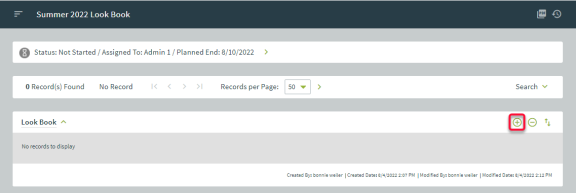
Press add to create a Look Book. A new window opens.
-
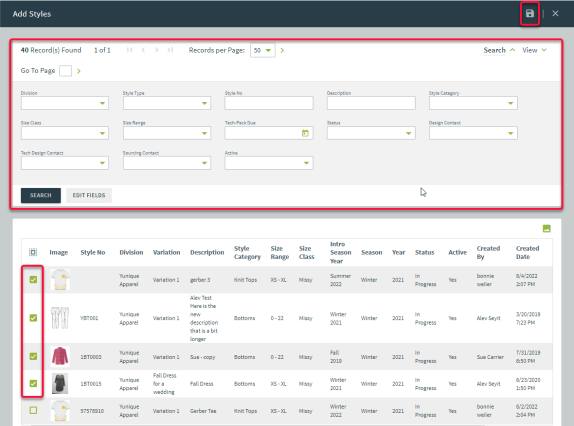
All existing styles within the same Season/Year combination, are listed. Use the search area to filter the section accordingly.
-
Place a checkmark next to the preferred style(s) and click save. The window automatically closes and returns to the Look Book main page.
-
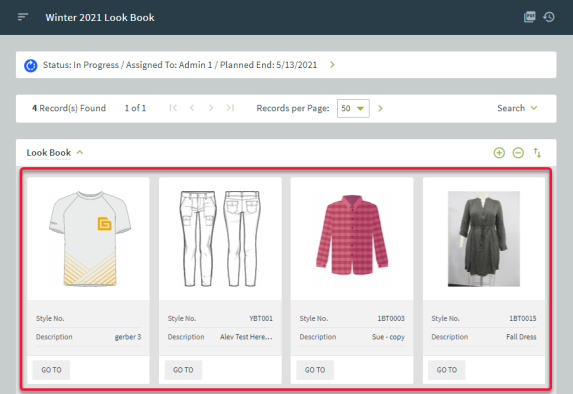
Newly added styles will appear on the Look Book main page.
Accessing a Style
Style development pages are accessible once a Style is added to the look book.
-
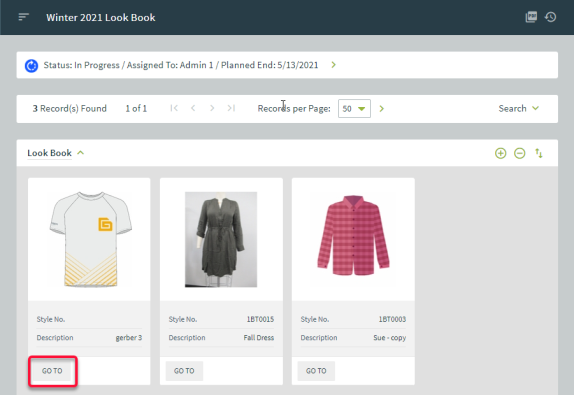
Click the Style’s Go To button.
-
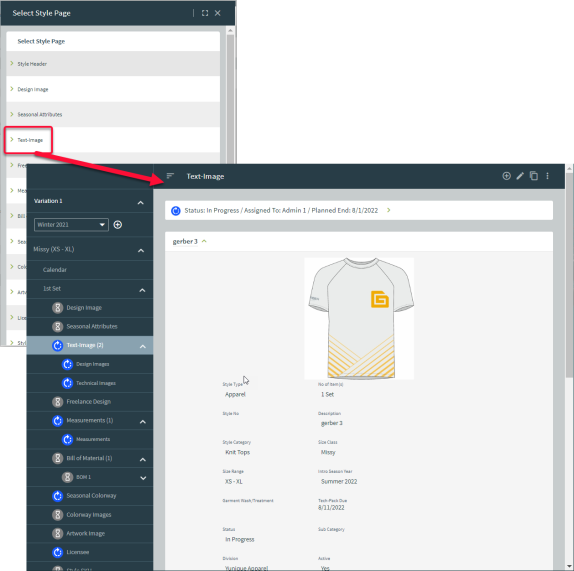
A pop-up window will appear with a list of available workflow pages for that style. Click a Style page to quickly access the selected page.
Remove Styles
Follow the steps below to remove unwanted styles from the look book.
-
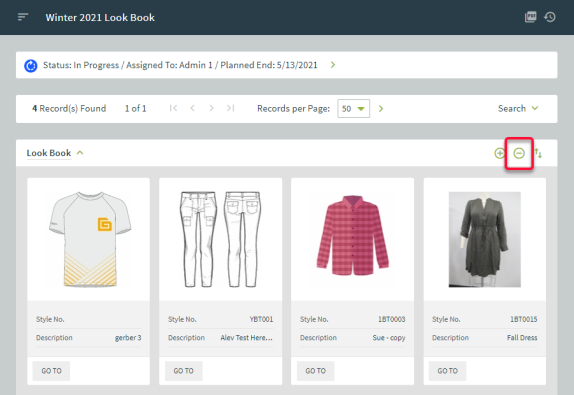
Press remove to delete unnecessary styles from the Look Book. A pop-up window opens.
-
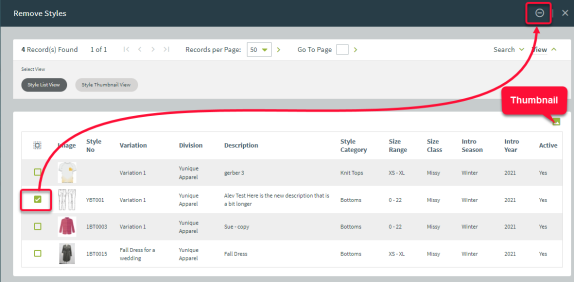
Select a style to remove from the Look Book. Easily locate desired styles using the Thumbnail option. Place a checkmark next to each style you would like to delete.
-
Click the remove button to delete the selections. The window automatically closes and returns to the Look Book page.
Sort
Existing styles can be sorted in order of preference.
-
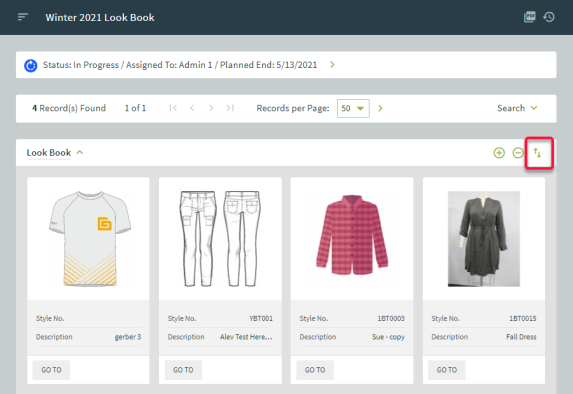
Click the sort button to open its window.
-
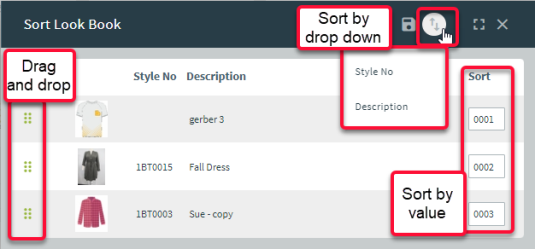
The sort area contains the following view:
-
Sort by Value: Enter a new sort number within the Sort field of each style.
-
Sort by Drop-down: Select the drop-down to sort by style no. or description.
-
Drag and drop: Click the green dotted list item to drag and drop a style to a preferred order.
-
-
Click save to keep the changes. The window automatically closes and returns to the main Look Book workflow page where the newly sorted Style(s) appear.
Comments
Add a note to the Look Book workflow page.
-
Scroll down to the Comments area at the bottom of the Look Book workflow page. Press the Add New button.

-
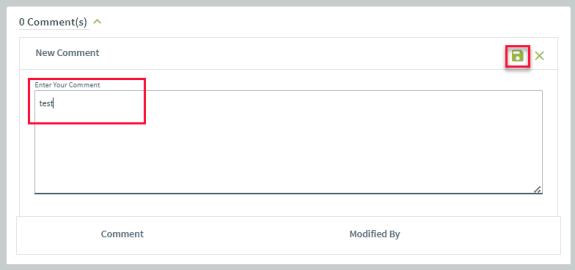
The New Comment area opens. Enter a comment then press save to keep.
-
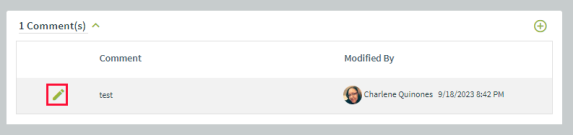
The comment is saved and appears within the Look Book workflow page. Users may edit the comment by pressing the pencil icon.
-
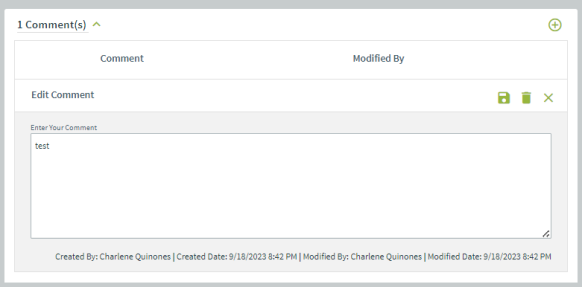
The Edit Comment window opens. Modify the comment and press save to keep the changes. Users may also delete (trash icon) the comment or cancel editing by pressing the X button.